

Onboarding your team and provisioning users
Set up new users in ReversePilot with appropriate roles and permissions. This guide covers account creation, user hierarchies, and permission management for company administrators and team members.

Account Creation
For Company Administrators
If you are setting up a new company in ReversePilot, follow these steps:
Contact ReversePilot support
Reach out to your ReversePilot administrator to create your company account.
Receive login credentials
You will receive login credentials via email.
Change your password on first login
Upon first login, you will be prompted to change your password to meet your organization's complexity and length requirements.
Complete your company profile
Configure your company profile in Company Settings, including company details, loan products, and authorized signers.
For Company Users
Company users are created by Company Administrators. As a new user, you will:
- Receive an email with your login credentials from your Company Administrator
- Log in to ReversePilot for the first time
- Change your password if prompted
- Contact your Company Administrator with any account-related questions
If you need to reset your password, use the "Forgot Password" link on the login page.
User Roles and Permissions
ReversePilot uses a hierarchy-based permission system to control access to features and loan data. Your role determines what actions you can perform and which loans you can view.
Role Hierarchy
Super User
- Full system access across all companies
- Reserved for ReversePilot system administrators
Company Administrator
- Full access to all features within their company
- Can create and manage users within the company
- Configure company settings, loan products, and permissions
- Manage compliance policies and licensing
Company User
- Access to loan processing features based on assigned permissions
- Can be assigned one or more job-specific roles
- Access is controlled by permission groups assigned by Company Administrators
Common Permission Groups
Company Users can be assigned to permission groups that correspond to their role in the loan process:
- Loan Officers — Create loans, calculate loan proceeds, and submit applications
- Processors — Process applications, collect documents, and verify information
- Underwriters — Review applications, issue approvals, and clear loans to close
- Closers — Prepare closing documents and manage the closing process
- Funders — Process funding and manage post-closing tasks
Your Company Administrator can create custom permission groups to match your company's organizational structure and workflows.
Managing Users as Administrator
As a Company Administrator, you are responsible for creating accounts and assigning permissions to your team members.
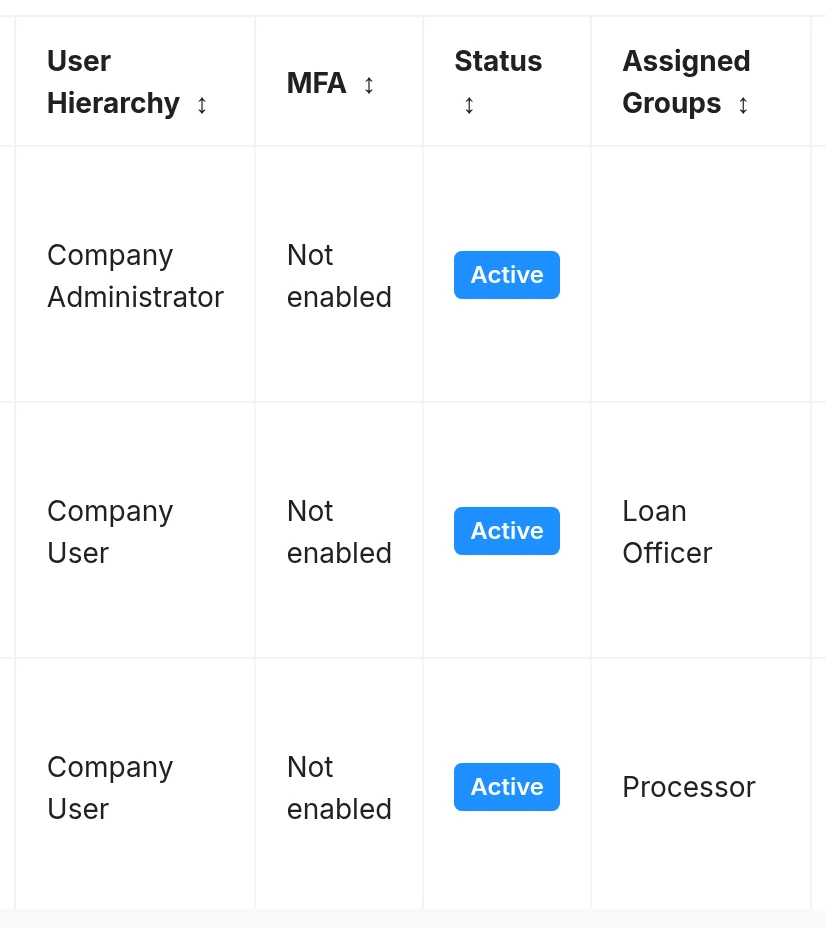
Creating a New User Account
To provision a new team member:
Create the user account
Open Users and select Create User, then enter the user's email address and basic information. To add several people at once, use Bulk Import.
Assign permission groups
Select one or more permission groups that match the user's job responsibilities (e.g., Loan Officer, Processor). Users can be assigned to multiple groups if they have multiple roles in your organization.
Send credentials
ReversePilot will automatically send login credentials to the user's email address.
Confirm first login
The user will be prompted to change their password on first login. Password requirements are based on your company's security policies.
Understanding Permissions
ReversePilot uses a permission-based access control system organized by functional areas:
- Permission Groups — Collections of permissions that define what actions users can perform within the system
- Module-Based Organization — Permissions are organized by functional areas such as loans, documents, and reports
- Multiple Assignments — A single user can be assigned to multiple permission groups to support cross-functional responsibilities
For example, a user assigned to the Loan Officer group will have permission to create loans and calculate proceeds, while a user in the Processor group can access application documents and verify borrower information.
Initial Login
First-Time Login Steps
Navigate to the login page
Visit the ReversePilot login page in your browser.
Enter your credentials
Use the email address and temporary password provided in your welcome email.
Change your password
On first login, you will be required to set a new password that meets your company's requirements.
Access the dashboard
You will be directed to your ReversePilot dashboard.
Password Requirements
Your password must meet the following criteria:
- Minimum length (as configured by your administrator)
- Complexity requirements (typically a mix of upper and lowercase letters, numbers, and special characters)
- Cannot match your previous password
First Steps After Onboarding
Once you have successfully logged in, take these steps to orient yourself:
Review your profile
Navigate to your User Profile to verify your personal information is correct and familiarize yourself with your assigned permissions.
Explore the dashboard
Review the main dashboard to see your assigned loans, quick-access tasks, recent activity, and loan status summaries.
Check your permissions
Verify you have access to the features you need for your role. If you see restricted features, contact your Company Administrator to request access.
Familiarize yourself with navigation
Open Find Loan to practice filtering, searching, and sorting loans. If you're an administrator, review the Company Settings area to understand your configuration.
Create a test loan (optional)
If you have Loan Officer permissions, consider creating a test loan application to practice the workflow.
Basic Navigation Overview
Main Dashboard
The dashboard provides at-a-glance information including:
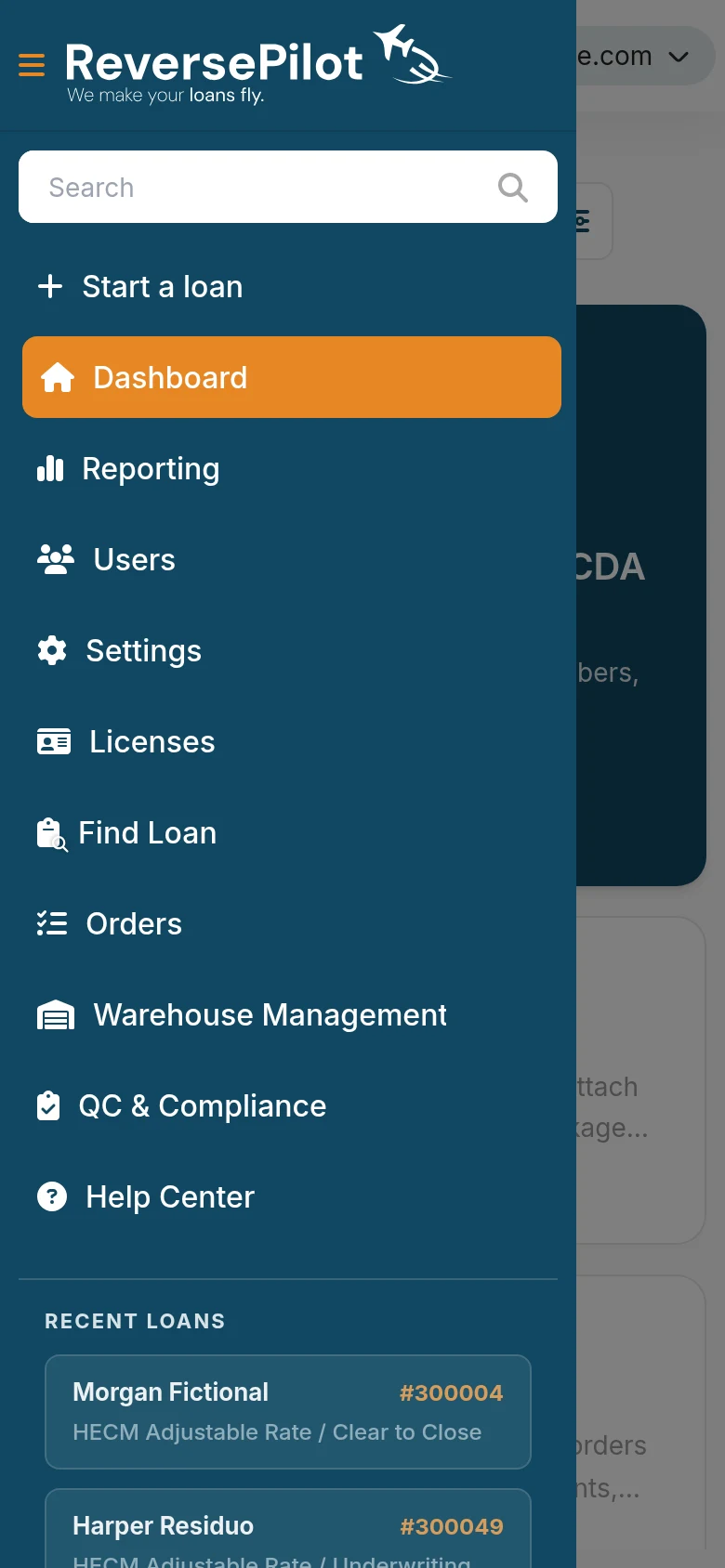
- An overview of your assigned loans
- Quick links to common tasks
- Recent activity and notifications
- Loan status summaries
Find Loan
Access all loans you have permission to view by selecting Find Loan in the menu. You can:
- Filter by status, loan officer, or date range
- Search by borrower name, loan number, or property address
- Sort by various criteria
- Export loan data for reporting
User Profile
Your User Profile allows you to:
- Update personal information
- Change your password
- View your assigned permissions
- Manage signature images (if your role requires document signing)
Troubleshooting Access Issues
Login Problems
If you cannot log in:
- Verify your email address is correct
- Use the "Forgot Password" link to reset your password
- Clear your browser cache and cookies
- Try logging in with a different browser
- Contact your Company Administrator or ReversePilot support if the problem persists
Permission and Access Issues
If you cannot access certain features or loans:
- Verify you have the necessary permissions by checking your User Profile
- Confirm your account is active with your Company Administrator
- Request additional permission groups from your Company Administrator if needed
Getting Help
For Company Administrators
- Contact ReversePilot support directly for assistance
- Access the support ticket system for technical issues
- Review detailed Administrator Documentation for configuration guidance
For Company Users
Contact your Company Administrator for:
- Password resets
- Permission changes or access requests
- Account issues
- Questions about your company's processes and workflows
Use the ReversePilot documentation for:
- Feature-specific questions
- Workflow guidance
- Integration help
Security Best Practices
Protect your ReversePilot account by following these security guidelines:
- Never share your password with anyone, including administrators
- Use strong passwords and change them regularly
- Log out when you finish working, especially on shared computers
- Report suspicious activity to your Company Administrator immediately
- Keep your browser updated with the latest security patches
Was this article helpful?
Your feedback goes directly to the engineer who wrote it.