

Creating a loan application: first-file checklist
Prepare a first loan file, check product-specific instructions, confirm saved information, and troubleshoot missing fields or access before handoff.

Use this checklist to prepare a first file, review what you entered and give the next person a clear handoff. Follow your organization's current instructions for the selected product and your assigned access. Screen labels and available actions should be confirmed with your administrator; the checklist does not describe a tested sequence of ReversePilot screens.
Before you start
Confirm which account and role you should use, which product your organization intends to offer, and who owns questions about its configuration. Have borrower and property source information available through your approved document-handling process. Check for an existing application before starting another record.
Organize the information your current procedure calls for: borrower identity and contact details, property address and value source, financial information, supporting documents and the intended file owner. Keep estimates distinguishable from verified records. Do not fill a missing value with an invented answer just to move past a required field.
For a training exercise, use an approved test environment and fictional records. Confirm that external orders and communications use test services before proceeding. Keep actual borrower identifiers out of training notes and support screenshots.
Check the selected product before entering the file
For a HECM file, use your organization's current HECM instructions. For a proprietary file, obtain the instructions for that specific product. Ask the responsible product or operations owner to confirm the applicable requirements, configuration and review sequence for each. Do not carry age assumptions, calculation tables, fees or document checklists from one product into another without that review.
Treat a product appearing in a selection list as a configuration observation, not a decision about a borrower's eligibility. If the intended product is missing, preserve the information already collected and ask the administrator to review availability and configuration. Do not select a different product merely to get past the problem.
Enter, save and check the record
Use the new-application route in your organization's current instructions. Compare each requested value with its source as you enter it. Preserve the distinction between an estimated property value and a later appraisal, and keep unanswered questions attached to the file's next action.
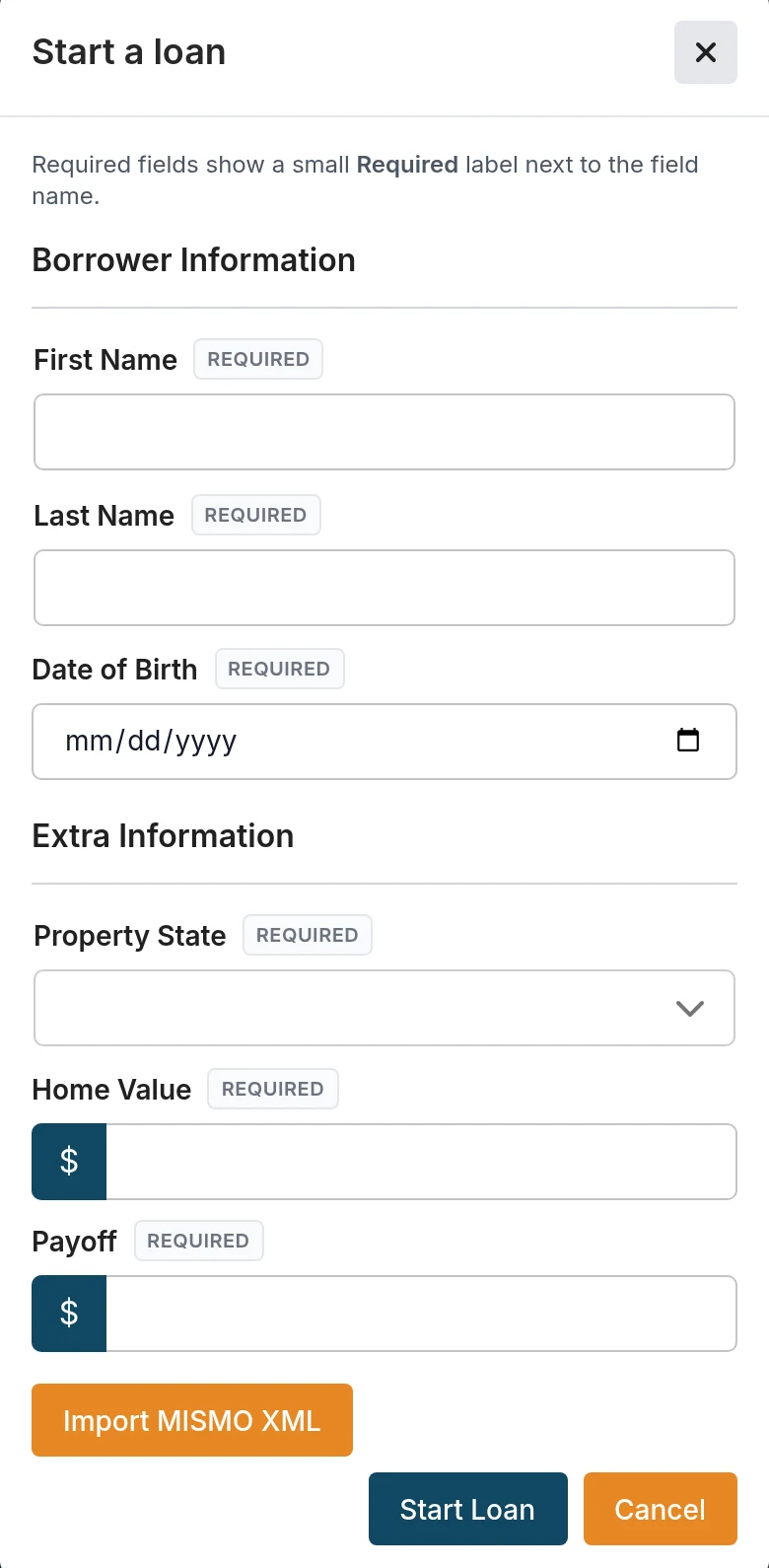
Follow the available save procedure, then reopen the record through the normal file list or lookup. Check that the intended borrower label, property information, product and owner remain recorded correctly. If you cannot confirm that the file was saved, investigate before creating a second application. A completed screen or a changed label alone does not establish that the receiving person has the information they need.
Use this fictional first-file worksheet during onboarding. It is an example of what to record, not a report of a completed software test.
| Check | Example record for FIRST-01 | Next action |
|---|---|---|
| Access and product | Test user and intended product identified by the administrator | Confirm the approved creation route |
| Source information | Fictional borrower; property value labeled as an estimate | Compare entries with the exercise packet |
| Missing information | One required field is unanswered | Record the displayed message; obtain the missing answer |
| Save check | File reference and reopened values to be recorded after saving | Confirm persistence before starting another file |
| Handoff | Document gap and product question listed separately | Name the receiving owner and request acknowledgment |
Troubleshoot the specific failure
| What you observe | What to capture | Who should act |
|---|---|---|
| You cannot start a file | Role, attempted action and sanitized access message | Administrator checks the intended permission |
| Intended product is unavailable | Product name, property state and configuration question, without borrower identifiers | Product owner or administrator checks the configuration |
| A field prevents saving | Field label, exact sanitized message and whether a file reference already exists | File owner resolves the missing or conflicting source information |
| Saved information cannot be found | Time, file reference if present, and the route used to look it up | Support or administrator investigates before another record is created |
| A calculation appears inconsistent | Product/configuration reference, input sources, expected result supplied by the qualified reviewer, and observed result | Qualified reviewer investigates the difference |
Do not change accurate source information until a calculation produces a preferred number. Keep the original observation and record any authorized correction and its reason. Use your organization's separate approval procedure for credit orders, fees and other external actions; creating a file does not authorize those actions.
Make the first handoff explicit
Before handoff, record what is complete, what remains unresolved, which source documents support the entries and who should act next. Confirm that the receiving person can find the file and understands the outstanding work. Saving a record does not mean it has been submitted, reviewed or approved.
For later handoff steps, consult submitting an application alongside your organization's current procedure. For a creation problem, contact support with the failed action, time, role and sanitized message. Do not include passwords, access tokens or borrower documents in an ordinary support message.
Was this article helpful?
Your feedback goes directly to the editorial team.